
SearchInform Risk Monitor Updates: new User Interface and Enhanced Transparent Control Capabilities
The updated design and functionality of the next-gen DLP-based Risk Monitor’s user interface will facilitate the interaction between employees and specialists of the Information Security Department.
User interface of agent in the recent version of SearchInform Risk Monitor was completely redesigned.
This interface helps employees to conveniently interact with the Information Security department, for example, if they need to request access to a printer or a folder. From now on, it is possible to confirm the reading of notifications and learn the reason, why access to a specific file, directory or device was prohibited.
This not only simplifies communications but also helps to maintain a balance between user freedom of action and security measures.
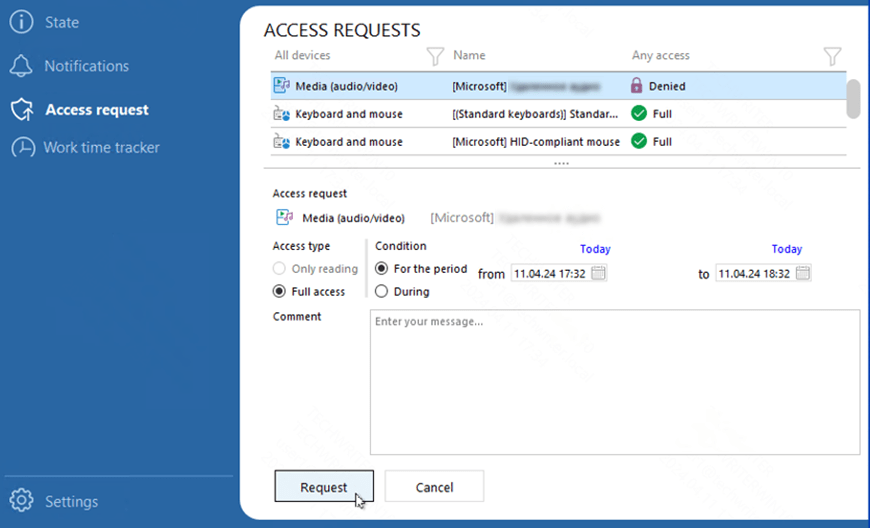
Example of access request preparation
The Risk Monitor interface shows employees devices, printers and network folders, which are available for them, notifies about blockings and displays information about users’ activity during working hours.
The window is hidden on the taskbar and is highlighted when notifications are received. When expanded, it shows a list of all available and blocked directories, devices, actions and files. An employee can leave a comment for the IS specialist, indicating the reason for the access request and specify the required time of device usage. Time tracking functionality reveals employees, how their activity at the PC is monitored in the illustrative manner, what helps to enhance work discipline.
"We made the interface more user-friendly and more intuitive, completely redesigned it and expanded its functionality. Many of our clients are moving towards Transparent Control to remind their employees about the information security rules, established in their companies. The Risk Monitor’s user interface is a tool, which helps to simplify this task," told Sergio Bertoni, the Leading Analyst at SearchInform.
“Today you can manage access rights to any connected devices, media, shared folders and remote connections, even the clipboard, with the help of user interface. We are constantly expanding this list and will soon cover all the blocking options available in Risk Monitor", highlighted Bertoni.
By default, the system works in the invisible mode for the user; before using the interface, it is necessary to activate it in the Risk Monitor settings and specify the modules that will become visible to employees. The options are flexible: you can activate notifications and specify the text of notification for each module separately, as well as specify, how they will be displayed.
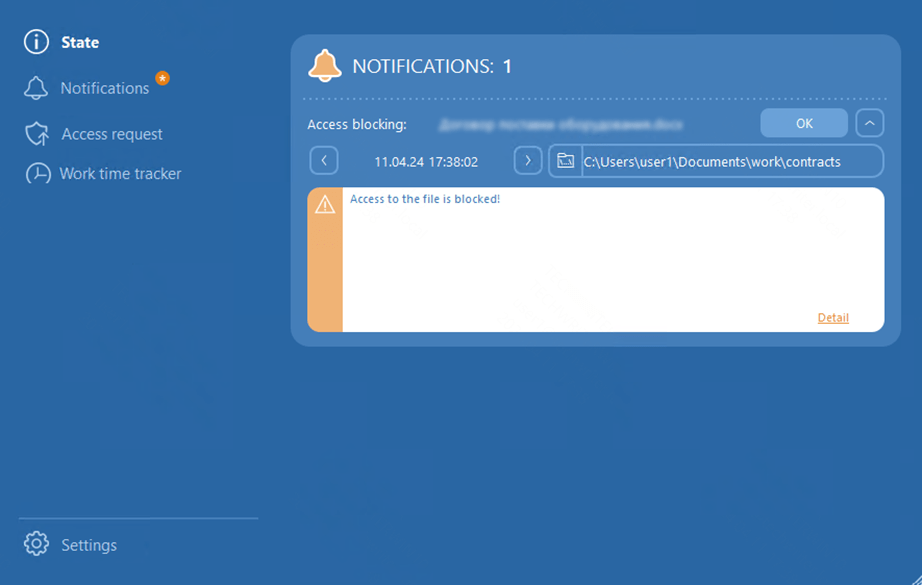
Example of a blocking notification

